
Notification Plugin Setup
How do I add a new site to Notification?
Navigate to your Dashboard > +New Site.
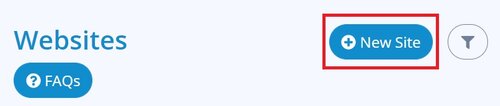
Enter the Name of your website > enter the url of your Domain (your website address without "https", i.e. notification.co) > select Include Subdomains (non-advanced users) > Create.

Standard Instructions
Copy and paste your unique Notification pixel code into the Header File of your website before the closing </ head > tag.
Installation Steps
| Note: You must first follow the steps in Add a New Site before you can see your site specific Notification marketing pixel. |
Locate your unique Notification marketing pixel code from your Dashboard >  select the cog icon next to your website > and then Install Pixel.
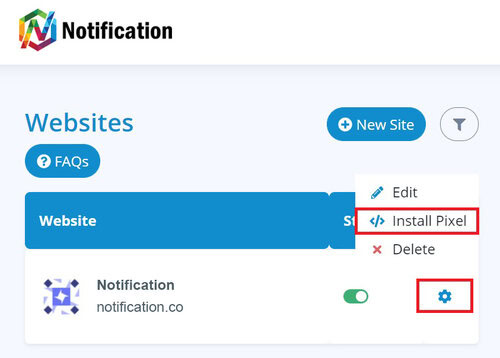
Select the Copy Pixel button to copy the pixel to your device's clipboard.
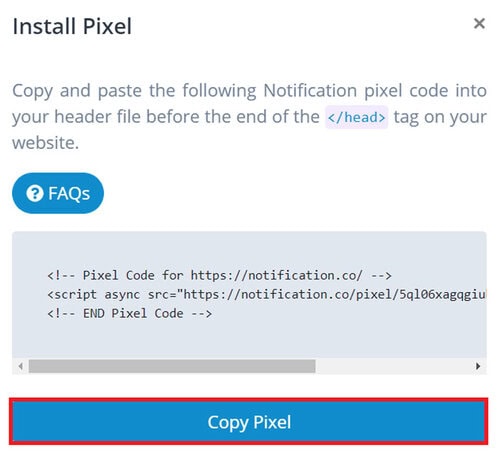
Paste your unique Notification pixel code into the Header File of your website before the closing </ head > tag.
WordPress Instructions
| Note: Advanced users can use the Standard Instructions instead of a WordPress plugin. |
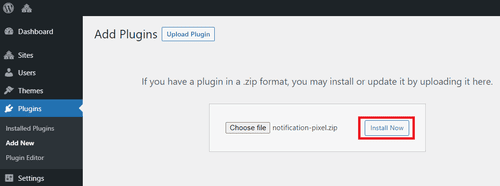
Download the WordPress Notification Pixel Plugin and from your WordPress Dashboard go to Plugins > Add New > Upload Plugin > Choose File ( Notification Pixel ) > Install Now > Activate.
Go to Settings > Notification Pixel > copy and paste your unique Notification pixel code into the section Notification Pixel Code > Save Settings.

Locating Your Pixel
| Note: You must first follow the steps in Add a New Site before you can see your site specific Notification marketing pixel. |
Locate your unique Notification marketing pixel code by navigating to your Dashboard > select the cog icon next to your website > Install Pixel.
Select the Copy Pixel button to copy the pixel to your device's clipboard.
WiX Instructions
| Note: Notification is only available for WiX sites with a connected custom domain name, you cannot use domains with wix.com in the address. |
Go to Settings in your WiX site's dashboard (click here) and select Overview > Analytics.

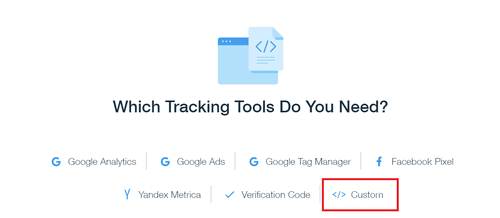
Select Custom under the heading of Which Tracking Tools Do You Need?
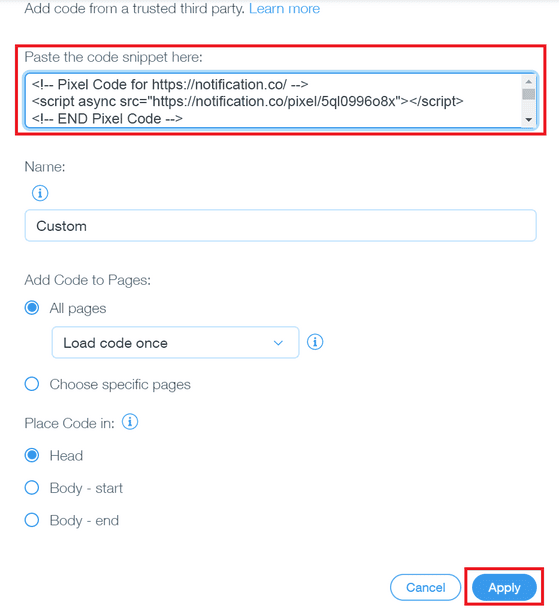
Paste your Notification pixel in the box that says Paste Code Snippet Here > Apply.
Locating Your Pixel
| Note: You must first follow the steps in Add a New Site before you can see your site specific Notification marketing pixel. |
Locate your unique Notification marketing pixel code by navigating to your Dashboard > select the cog icon next to your website > Install Pixel.
Select the Copy Pixel button to copy the pixel to your device's clipboard.
Shopify Instructions
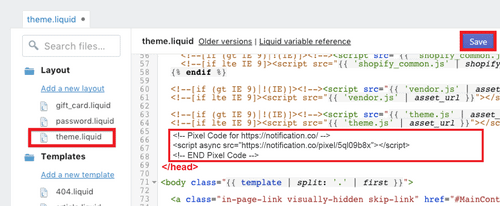
From your Shopify dashboard select Online Store > Themes > Actions > Edit Code > select /theme.liquid.

Paste your Notification pixel in the box directly above the < /head > tag and select Save.
Locating Your Pixel
| Note: You must first follow the steps in Add a New Site before you can see your site specific Notification marketing pixel. |
Locate your unique Notification marketing pixel code by navigating to your Dashboard > select the cog icon next to your website > Install Pixel.
Select the Copy Pixel button to copy the pixel to your device's clipboard.
Google Tag Manager (GTM) Instructions
Google Tag Manager (GTM) Instructions
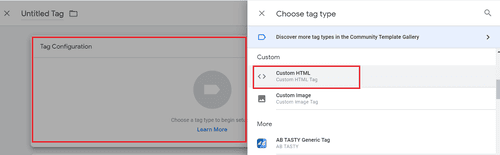
From your Google Tag Manager dashboard select New Tag.

Select Tag Configuration and then under Choose Tag Type scroll down and select Custom HTML.
Locating Your Pixel
| Note: You must first follow the steps in Add a New Site before you can see your site specific Notification marketing pixel. |
Locate your unique Notification marketing pixel code by navigating to your Dashboard > select the cog icon next to your website > Install Pixel.
Select the Copy Pixel button to copy the pixel to your device's clipboard.
Now go back to Google Tag Manager and past your Notification pixel code. Your code should look like the below on Google Tag Manager. 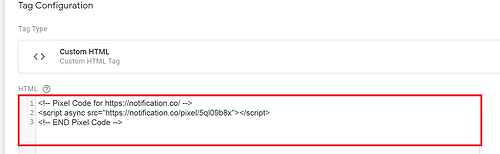
Scroll down the page and select Triggering.
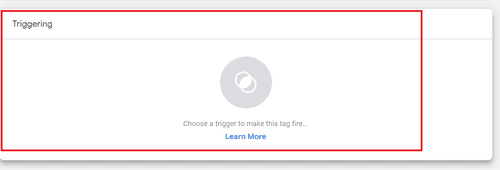
Select All Pages.

Name your tag (if you want) and select Save.

Finally, ensure that you Submit changes to your new tag on the dashboard of Google Tag Manager. 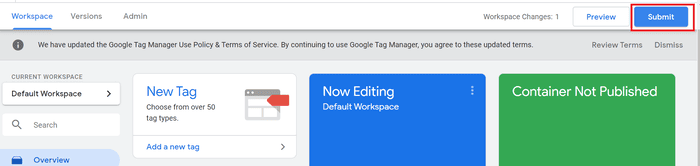
My Account
Where do I reset a lost password? (Before Login)
You can reset a lost password here.
Where do I update my password? (After Login)
You can update your password here.
Where do I upgrade or renew my package? (After Login)
You can upgrade or renew your package here.
Where do I cancel my package? (After Login)
You can cancel your package here.
Legal Stuff
Where do I find your Privacy Policy?
You can find our Privacy Policy here.
Where do I find your California: Do Not Sell My Personal Information Policy?
You can find our California: Do Not Sell My Personal Information Policy here.
Where do I find your Terms & Conditions?
You can find our Terms & Conditions here.
Where do I find your enterprise Master Service Agreement for corporate projects?
You can find our Master Service Agreement here.
Support
How do I contact support?
Click on the Support link at the bottom of any page to contact Notification support.